Learnwick LMS + Typeform Integration
Turn Typeform submissions into training
Connect your new-hire or sign-up Typeform to Learnwick LMS. Everyone who submits it is invited, added to the right group, and given their courses straight away.
New to Learnwick? Start free with up to 30 learners, no card. Or book a demo.
How it works
Someone fills in your form
A new hire, contractor or trainee submits your Typeform with their email.
Learnwick invites them
They get an invite to your Learnwick workspace as a Learner. No copying names across.
Their training starts
They join the group you chose and get its courses with due dates. Reminders run by themselves.
Set it up in 5 minutes
You need a Learnwick workspace (any plan, including Free) where you're an Owner or Admin, a Typeform plan with webhooks, and a form with an Email question.
In Learnwick
- 1Go to Groups, make a group (for example "New starters") and choose the courses it gives everyone automatically.
- 2Go to Settings → Typeform and click Connect a Typeform.
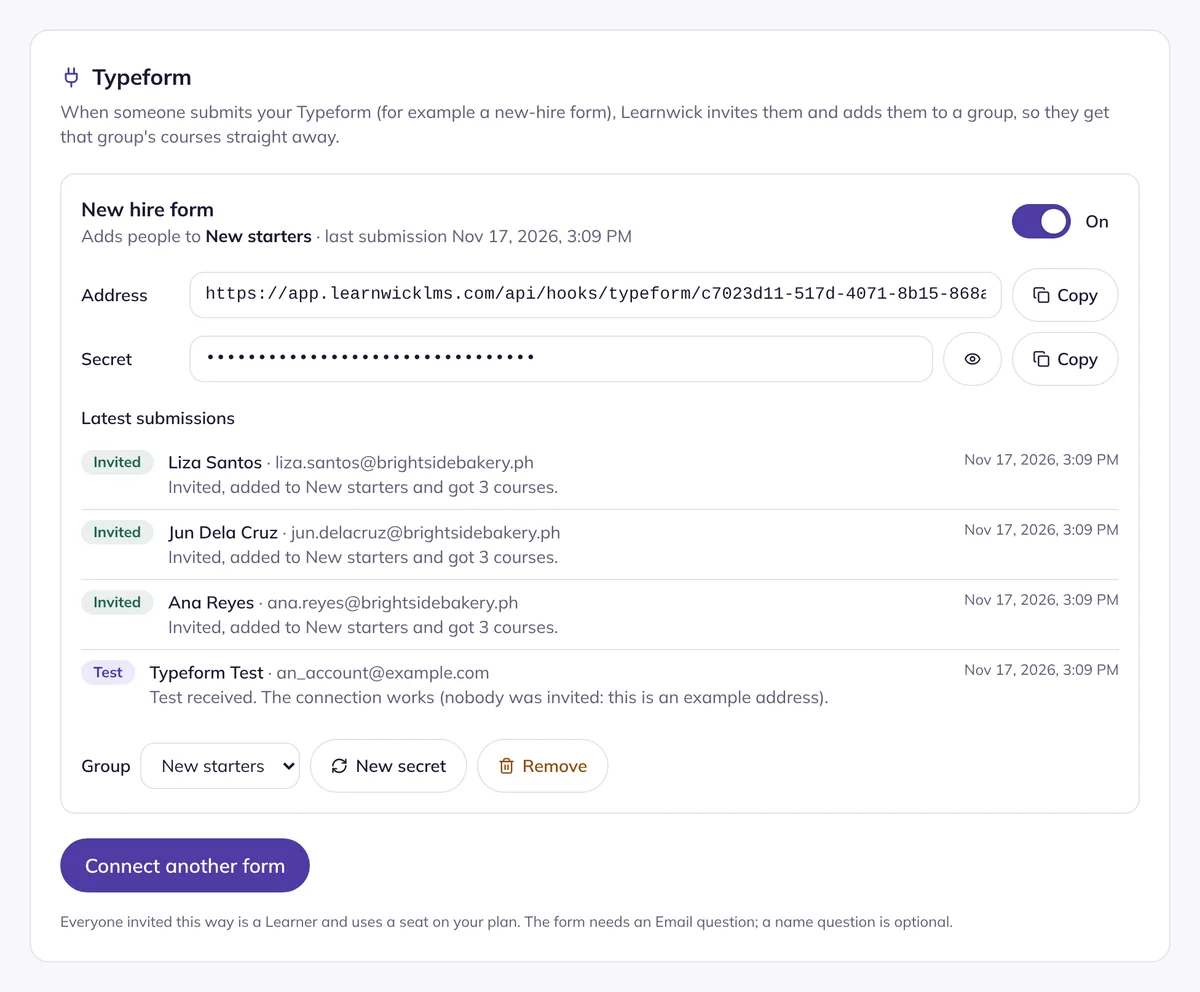
- 3Name it (for example "New hire form"), choose the group, and click Connect. Learnwick shows an Address and a Secret.
In Typeform
- 1Open your form and go to Connect → Webhooks. Click Add a webhook and paste the Address.
- 2Click Edit on the webhook, switch on Secret, paste the Secret, and save.
- 3Switch the webhook on.
- 4Click Send test request. A "Test" line appears in Learnwick. Nobody is invited by a test.
See what happened to each submission
Under each connected form, Learnwick lists the latest submissions and what it did:
- Invited: a new person was invited, added to the group and given its courses.
- Added to group: they were already in your workspace.
- Already there: they were already in the group, so nothing changed.
- Test: a test request. Nobody was invited.
- Not done, with the reason: for example your plan is full, or the form has no email question.
Safe by design
- Every submission is signed with your secret. Unsigned or wrongly signed ones are refused.
- People are always invited as Learners, never as admins.
- Someone you switched off in Learnwick is never brought back by a form.
- A submission Typeform sends twice is handled once.
- Switch a connection off, change its group, or make a new secret at any time.
Questions
What does the Typeform integration do?
When someone submits a connected Typeform, Learnwick invites them as a Learner, adds them to the group you chose, and gives them the courses that group assigns automatically, with due dates. If they are already in your Learnwick workspace, they are just added to the group.
Which Learnwick plan do I need?
Any plan, including the Free plan for up to 30 learners. Everyone invited this way uses a seat on your plan.
What does my form need?
An Email question. A First name and Last name question, or one Full name question, is optional; without one, Learnwick makes a name from the email address. Other questions are ignored.
Is it safe?
Each connection has its own secret. Typeform signs every submission with it, and Learnwick refuses anything that is not signed correctly, so nobody else can add people to your workspace.
Will a test from Typeform invite someone?
No. Typeform's "Send test request" and example email addresses only show a "Test" line in Learnwick, so you know the connection works.
What if the same person fills in the form twice?
They are not invited twice. If Typeform sends the same submission again, Learnwick handles it once. Someone who was invited earlier but never joined gets a fresh invite link.
Can I connect more than one form?
Yes, up to 10 forms per workspace, each adding people to its own group.
Need help? Email hello@learnwicklms.com.
Give your team training they’ll actually finish
Free for up to 30 learners. No credit card, no sales call. Every feature on every plan.
Rather see it first? Book a demo